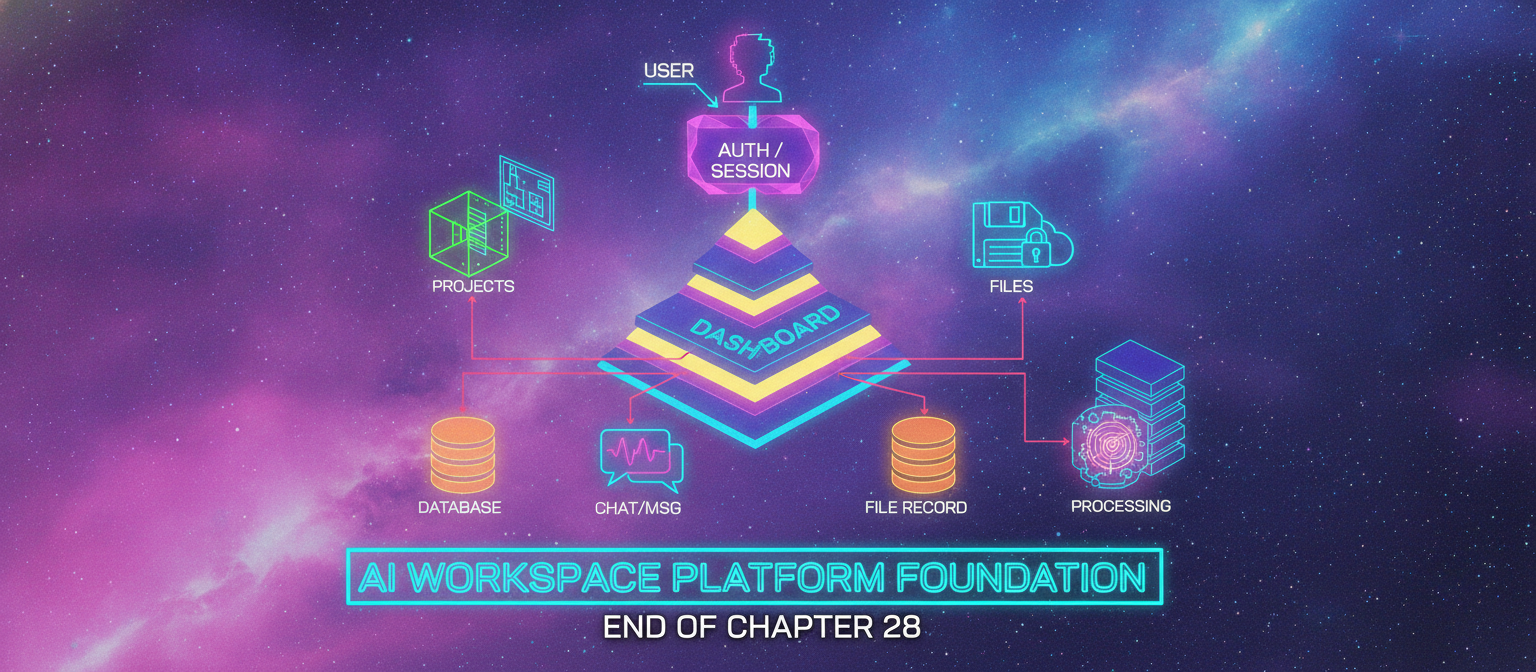
28.1 Chapter Objective
Chapter 27 established the account and persistence foundation.
Now we build the actual working workspace around that foundation.
The target is:
LOGIN
  ↓
DASHBOARD
  ↓
PROJECTS
  ↓
CONVERSATIONS
  ↓
CHAT HISTORY
  ↓
FILE UPLOAD
  ↓
SECURE STORAGE
  ↓
DATABASE RECORD
After this chapter, ACAI should feel like a real AI workspace rather than only a chat application.
28.2 What We Are Building
This chapter introduces:
[✓] Dashboard
[✓] Project list
[✓] Project creation
[✓] Conversation list
[✓] Conversation creation
[✓] Conversation history
[✓] Delete/archive controls
[✓] File upload UI
[✓] File validation
[✓] Object storage architecture
[✓] File database records
[✓] User ownership
[✓] Secure download/access
[✓] Upload limits
[✓] Upload error handling
28.3 New Architecture
The architecture becomes:
                         ACAI
                          │
             ┌────────────┼────────────┐
             ▼            ▼            ▼
          DASHBOARD     CHAT        FILES
             │            │            │
             ▼            ▼            ▼
         PROJECTS    CONVERSATIONS   STORAGE
                          │            │
                          ▼            ▼
                       MESSAGES      DATABASE
28.4 Dashboard Purpose
The dashboard is the user's main workspace.
It should answer immediately:
What projects do I have?
What conversations did I use recently?
What files have I uploaded?
What can I do next?
A basic layout:
┌───────────────────────────────────────────────┐
│ ACAI                              Profile     │
├───────────────┬───────────────────────────────┤
│ Dashboard     │ Welcome back                 │
│ Projects      │                               │
│ Conversations │ [New Project] [New Chat]     │
│ Files         │                               │
│ Settings      │ Recent Projects              │
│               │ Recent Conversations          │
│               │ Recent Files                  │
└───────────────┴───────────────────────────────┘
28.5 Dashboard Route
The dashboard should be private:
/dashboard
Flow:
OPEN /dashboard
       ↓
SESSION CHECK
       ↓
 ┌─────┴─────┐
 ▼           ▼
VALID       INVALID
 ▼           ▼
DASHBOARD   LOGIN
28.6 Dashboard API
Do not load everything directly from the browser using unrestricted database queries.
Use controlled server-side endpoints or server-side data access.
Conceptually:
GET /api/dashboard
could return normalized information such as:
{
  "projects": [],
  "recentConversations": [],
  "recentFiles": []
}
The exact endpoint structure can be different depending on the implementation.
28.7 Project Creation
The user clicks:
+ New Project
A small form appears:
Project Name
Description

[Cancel] [Create]
Flow:
FORM
 ↓
VALIDATE
 ↓
AUTHENTICATED USER
 ↓
CREATE PROJECT
 ↓
DATABASE
 ↓
REFRESH DASHBOARD
28.8 Project Validation
Validate on both sides.
Frontend:
empty?
too long?
invalid?
Server:
empty?
too long?
authorized?
The server remains the final authority.
28.9 Project Ownership
When creating:
project.userId = authenticatedUser.id
Never accept an arbitrary userId from the browser.
Incorrect:
{
  "name": "My Project",
  "userId": "someone-else"
}
Correct architecture:
Browser
 ↓
name only
 ↓
Server
 ↓
session.userId
 ↓
database
28.10 Project List
Dashboard:
PROJECTS

┌──────────────────────────────┐
│ Marketing AI                 │
│ 12 conversations             │
│ Updated recently             │
└──────────────────────────────┘

┌──────────────────────────────┐
│ Research                     │
│ 8 conversations              │
│ Updated yesterday            │
└──────────────────────────────┘
Only projects belonging to the authenticated user should be returned.
28.11 Project Details
A project can eventually have:
Project
├── Conversations
├── Files
├── Generations
└── Settings
This gives ACAI a workspace model.
28.12 Conversation History
The dashboard can show:
RECENT CONVERSATIONS

Explain quantum computing
Today

Research assistant
Yesterday

Marketing plan
Aug 29
Clicking a conversation opens:
/chat/[conversationId]
28.13 Conversation Creation
The flow:
NEW CHAT
 ↓
CREATE CONVERSATION
 ↓
ASSOCIATE USER
 ↓
ASSOCIATE PROJECT
 ↓
DATABASE
 ↓
OPEN CHAT
28.14 Conversation Title
At creation, a conversation can have:
New Conversation
Later, ACAI can automatically generate a title from the first message.
Example:
User:
Explain how neural networks work.

Generated title:
Neural Network Basics
This title-generation feature can be added after the basic persistence works.
28.15 Conversation Sidebar
Inside chat:
CONVERSATIONS

+ New Chat

Today
 ├── AI Architecture
 ├── Research Notes
 └── Product Plan

Yesterday
 ├── Python Help
 └── Marketing Ideas
Selecting one loads its messages.
28.16 Conversation Deletion
A user may eventually delete a conversation.
Flow:
DELETE
 ↓
AUTH
 ↓
OWNERSHIP CHECK
 ↓
DATABASE
 ↓
DELETE / SOFT DELETE
For important systems, consider soft deletion:
deletedAt
instead of immediately destroying every record.
28.17 Conversation Archiving
An alternative is:
ACTIVE
ARCHIVED
This lets the user hide old conversations without immediately deleting them.
28.18 File System Architecture
Now we introduce files.
Important distinction:
DATABASE
≠
FILE STORAGE
The database stores information about a file.
Object storage stores the actual file bytes.
Architecture:
USER
 ↓
UPLOAD
 ↓
OBJECT STORAGE
 ↓
FILE RECORD
 ↓
DATABASE
28.19 File Database Model
A conceptual model:
File
--------------------------------
id
userId
projectId
name
mimeType
size
storageKey
status
createdAt
updatedAt
Optional future fields:
checksum
width
height
duration
pageCount
metadata
processingError
28.20 Storage Key
Do not store every file using only its original filename.
For example:
report.pdf
is not a safe unique storage identity.
Instead use an application-generated storage key:
users/{userId}/projects/{projectId}/files/{fileId}
This creates a predictable ownership boundary.
28.21 Why Storage Key Matters
Suppose two users upload:
resume.pdf
Both files have the same filename.
But their storage identities are different:
users/A/.../file-001
users/B/.../file-002
The database keeps the display name:
resume.pdf
while storage uses a unique key.
28.22 Upload UI
The first file interface:
┌──────────────────────────────────────┐
│                                      │
│       Drag & Drop Files Here         │
│                                      │
│            or                        │
│                                      │
│          [Choose Files]              │
│                                      │
└──────────────────────────────────────┘
Below:
Allowed file types
Maximum size
Upload progress
28.23 File Validation
Before upload:
FILE
 ↓
TYPE CHECK
 ↓
SIZE CHECK
 ↓
NAME CHECK
 ↓
ACCEPT / REJECT
Possible restrictions:
maximum file size
maximum number of files
allowed MIME types
allowed extensions
The exact limits should be configuration-driven.
28.24 Never Trust Browser MIME Type Alone
A browser may report:
application/pdf
but that should not be treated as absolute proof of the file's actual contents.
For higher-security workflows:
upload
 ↓
server-side validation
 ↓
content inspection
 ↓
accept
28.25 Upload Architecture
For small prototypes:
Browser
 ↓
Application Server
 ↓
Storage
For scalable production:
Browser
 ↓
Request upload permission
 ↓
Signed upload URL
 ↓
Object Storage
The second approach avoids sending large files unnecessarily through the application server.
28.26 Signed Upload URL
Conceptual flow:
BROWSER
   │
   │ 1. request upload
   ▼
ACAI SERVER
   │
   │ 2. validate user/file
   ▼
SIGNED URL
   │
   │ 3. upload directly
   ▼
OBJECT STORAGE
The server controls who receives permission and what resource they can upload.
28.27 Upload Session
A useful architecture is:
POST /api/files/upload-init
Request:
{
  "name": "report.pdf",
  "size": 1200000,
  "mimeType": "application/pdf"
}
Server:
AUTH
 ↓
VALIDATE
 ↓
CREATE FILE ID
 ↓
CREATE STORAGE KEY
 ↓
CREATE UPLOAD PERMISSION
 ↓
RETURN
28.28 Upload Completion
After the browser uploads:
OBJECT STORAGE
       ↓
UPLOAD COMPLETE
       ↓
POST /api/files/complete
       ↓
SERVER VERIFY
       ↓
FILE STATUS = READY
28.29 File Status
Use explicit states.
Example:
UPLOADING
PROCESSING
READY
FAILED
DELETED
Flow:
UPLOADING
   ↓
PROCESSING
   ↓
READY
If something fails:
PROCESSING
   ↓
FAILED
28.30 Why File Status Matters
A file may exist in storage but not yet be ready for AI processing.
Therefore:
FILE EXISTS
≠
FILE READY FOR RAG
The UI should communicate the actual state.
28.31 File List
Project page:
FILES

report.pdf
1.2 MB
Ready

research.docx
4.7 MB
Processing

image.png
2.1 MB
Ready
28.32 Secure File Download
Never create a public permanent URL for private user files unless the file is intentionally public.
Preferred flow:
USER
 ↓
DOWNLOAD
 ↓
AUTH
 ↓
OWNERSHIP CHECK
 ↓
TEMPORARY SIGNED ACCESS
 ↓
STORAGE
28.33 File Ownership
A file belongs to:
userId
projectId
When requested:
requested file
       ↓
file.userId === session.userId
       ↓
YES → continue
NO  → deny
28.34 File Deletion
Deletion can involve two systems:
DATABASE
+
OBJECT STORAGE
Therefore:
DELETE REQUEST
 ↓
AUTHORIZATION
 ↓
STORAGE DELETE
 ↓
DATABASE UPDATE
The implementation should be designed so partial failures can be recovered or retried.
28.35 Orphaned Files
An orphan can occur when:
storage upload succeeds
BUT
database write fails
or:
database record exists
BUT
storage deletion fails
Production systems need cleanup/reconciliation jobs.
28.36 File Processing
This chapter only establishes the upload foundation.
The next processing layer will be:
FILE
 ↓
EXTRACT CONTENT
 ↓
NORMALIZE
 ↓
CHUNK
 ↓
EMBED
 ↓
VECTOR STORE
Do not mix all of that into the initial upload request.
28.37 Why Processing Should Be Asynchronous
Large files can take time to process.
Bad architecture:
UPLOAD
 ↓
WAIT 5 MINUTES
 ↓
RETURN
Better:
UPLOAD
 ↓
QUEUE JOB
 ↓
RETURN QUICKLY
 ↓
WORKER PROCESSES FILE
28.38 Job Architecture Preview
Later:
FILE UPLOAD
     ↓
DATABASE
     ↓
JOB QUEUE
     ↓
WORKER
     ↓
TEXT EXTRACTION
     ↓
CHUNKING
     ↓
EMBEDDINGS
     ↓
VECTOR DATABASE
This will be developed in later chapters.
28.39 File Security
Uploaded files should be treated as untrusted input.
Security measures should include:
size limits
type validation
authorization
safe storage keys
access controls
malware/security scanning where appropriate
processing isolation
Do not execute uploaded files.
28.40 Filename Security
A user may upload:
../../secret.txt
or filenames containing unusual characters.
Never directly use an uploaded filename as a filesystem path.
Store:
displayName
separately from:
storageKey
28.41 Path Traversal Protection
Never construct local or storage paths directly from uncontrolled input.
Incorrect concept:
storage/user-input-filename
Correct:
server-generated fileId
+
server-generated storageKey
28.42 File Size Limits
There should be several levels:
Frontend limit
API limit
Storage limit
Processing limit
The backend/storage layer remains authoritative.
28.43 Project Quotas
A project may eventually have:
maximum storage
maximum number of files
maximum file size
maximum processing jobs
Example:
PROJECT
 ↓
QUOTA CHECK
 ↓
Enough capacity?
 ├── YES → upload
 └── NO → reject
28.44 User Quotas
Similarly:
USER
 ↓
STORAGE USAGE
 ↓
QUOTA
This becomes useful for free/pro/enterprise plans.
28.45 Dashboard Storage Usage
The dashboard can display:
Storage

1.8 GB / 10 GB

████████░░░░
The exact UI and limits depend on the application's billing model.
28.46 Recent Files
Dashboard:
RECENT FILES

report.pdf
2 minutes ago

research.docx
Yesterday

presentation.pptx
Aug 28
Clicking a file can open the file details or project context.
28.47 File Details
A file detail view can show:
Name
Type
Size
Uploaded
Status
Project
Processing status
Later:
Pages
Chunks
Embeddings
AI indexing status
28.48 Project Workspace
At this point, a project can become:
┌────────────────────────────────────────────┐
│ Research Project                           │
├─────────────┬──────────────────────────────┤
│ Overview    │ Recent Activity              │
│ Chat        │                              │
│ Files       │ Files                        │
│ Generations │ Conversations                │
│ Settings    │                              │
└─────────────┴──────────────────────────────┘
28.49 Project → Chat
A project-specific chat should automatically associate the conversation:
PROJECT
 ↓
NEW CHAT
 ↓
CONVERSATION.projectId
This makes project context possible later.
28.50 Project → Files
Files should also belong to the project:
PROJECT
 ├── CHAT
 ├── CHAT
 ├── FILE
 ├── FILE
 └── FILE
Then RAG can later use project-specific documents.
28.51 Project Isolation
If a user has:
Project A
Project B
documents from Project B should not automatically become context for Project A.
The future retrieval layer should respect:
userId
projectId
permissions
28.52 Chat Context With Files
Eventually:
USER
 ↓
QUESTION
 ↓
CURRENT PROJECT
 ↓
SEARCH PROJECT FILES
 ↓
RELEVANT DOCUMENTS
 ↓
AI
This is the bridge from Chapter 28 to RAG.
28.53 File Processing Queue
When a file becomes ready:
FILE READY
 ↓
CREATE PROCESSING JOB
 ↓
QUEUE
The queue might contain:
jobId
fileId
projectId
userId
jobType
status
createdAt
28.54 Worker
A worker processes:
JOB
 ↓
DOWNLOAD FILE
 ↓
EXTRACT CONTENT
 ↓
NORMALIZE
 ↓
CHUNK
 ↓
STORE RESULT
The worker should not trust client-provided ownership information.
It should use database records.
28.55 Retryable Jobs
If processing fails temporarily:
FAILED
 ↓
RETRY
But permanently invalid files should eventually become:
FAILED_PERMANENTLY
and provide a meaningful error state.
28.56 Dashboard Refresh
After uploading:
UPLOAD
 ↓
STATUS = PROCESSING
 ↓
UI UPDATE
 ↓
STATUS = READY
The frontend can use:
polling
server-sent events
websocket
revalidation
depending on the final architecture.
Do not add real-time infrastructure before it is actually needed.
28.57 Current API Structure
A possible structure:
/api
├── auth
├── dashboard
├── projects
├── conversations
├── chat
└── files
Within files:
POST   /api/files/upload-init
POST   /api/files/complete
GET    /api/files
GET    /api/files/[id]
DELETE /api/files/[id]
The exact routing can be changed during implementation.
28.58 API Authorization Matrix
Conceptually:
Endpoint                     Auth
------------------------------------------------
GET /dashboard               YES
POST /projects               YES
GET /projects/:id            YES
POST /conversations          YES
GET /conversations/:id       YES
POST /chat                   YES
POST /files/upload-init      YES
POST /files/complete         YES
GET /files/:id               YES
DELETE /files/:id            YES
Public endpoints should be explicitly identified rather than assumed.
28.59 Frontend Security Rule
Never assume:
button hidden
=
permission denied
For example, hiding:
Delete Project
does not protect the API.
The server must still enforce:
authentication
authorization
ownership
28.60 API Validation Layer
A clean request flow:
REQUEST
 ↓
AUTH
 ↓
SCHEMA VALIDATION
 ↓
AUTHORIZATION
 ↓
BUSINESS LOGIC
 ↓
DATABASE / STORAGE
 ↓
RESPONSE
This pattern should become standard across ACAI.
28.61 Standard Error Format
Keep API errors consistent.
Conceptually:
{
  "error": {
    "code": "FILE_TOO_LARGE",
    "message": "The uploaded file exceeds the allowed size."
  }
}
The internal stack trace remains server-side.
28.62 Frontend Error Display
Instead of:
500 Internal Server Error
show:
Unable to upload this file.
Please check the file size and try again.
Technical details can remain in developer logs.
28.63 Loading States
Every major operation should have a state:
idle
loading
success
error
For files:
selecting
uploading
processing
ready
failed
This makes the interface predictable.
28.64 Empty States
A new user may have no projects.
Do not show a blank screen.
Show:
No projects yet.

Create your first project to get started.

[Create Project]
For conversations:
No conversations yet.

[Start New Chat]
For files:
No files uploaded yet.

[Upload File]
28.65 Responsive Design
The dashboard should work on:
Desktop
Tablet
Mobile
Desktop:
Sidebar + Main Workspace
Mobile:
Top bar
Drawer
Main Workspace
28.66 Accessibility
Important controls should have:
labels
keyboard access
visible focus
sensible contrast
screen-reader-friendly names
File upload should not rely only on drag-and-drop.
There must be:
Choose Files
as an alternative.
28.67 Performance
Do not load:
all conversations
all files
all messages
at once.
Use:
pagination
cursor pagination
search
lazy loading
where appropriate.
28.68 Conversation Pagination
Instead of:
SELECT ALL MESSAGES
use a bounded result.
Conceptually:
Latest 50 messages
       ↓
Load older messages
This becomes important for long-running conversations.
28.69 File Pagination
Similarly:
Files 1–25
then:
Next
or infinite scrolling.
28.70 Search
The project workspace will eventually support:
Search conversations
Search files
Search messages
For now, basic database filtering is sufficient.
Semantic search belongs to the RAG stage.
28.71 Audit Events
For production, important actions can be recorded:
LOGIN
PROJECT_CREATED
CONVERSATION_CREATED
FILE_UPLOADED
FILE_DELETED
This becomes useful for:
security
debugging
enterprise auditing
28.72 Current Data Flow
The system now looks like:
                         USER
                          │
                          ▼
                     AUTH SESSION
                          │
                          ▼
                       DASHBOARD
                          │
             ┌────────────┼────────────┐
             ▼            ▼            ▼
          PROJECTS      CHAT         FILES
             │            │            │
             ▼            ▼            ▼
         DATABASE      DATABASE     STORAGE
             │            │            │
             └──────┬─────┘            │
                    ▼                  ▼
                  USER            FILE RECORD
                                     │
                                     ▼
                                  PROCESSING
28.73 Complete User Journey
A user can now do:
1. Open ACAI
       ↓
2. Sign up
       ↓
3. Login
       ↓
4. Open Dashboard
       ↓
5. Create Project
       ↓
6. Open Project
       ↓
7. Create Conversation
       ↓
8. Send AI message
       ↓
9. Refresh page
       ↓
10. Conversation remains
       ↓
11. Upload document
       ↓
12. File stored
       ↓
13. File status becomes PROCESSING
       ↓
14. Later → READY
That is the foundation of a true AI workspace.
28.74 Testing Checklist
Authentication
[ ] New account
[ ] Login
[ ] Logout
[ ] Protected dashboard
[ ] Invalid session rejected
Projects
[ ] Create
[ ] List
[ ] Open
[ ] Rename
[ ] Archive/delete
[ ] Ownership enforcement
Conversations
[ ] Create
[ ] Open
[ ] Send message
[ ] Persist message
[ ] Reload history
[ ] Ownership enforcement
Files
[ ] Upload
[ ] Validate size
[ ] Validate type
[ ] Store
[ ] Create DB record
[ ] Show processing state
[ ] Download securely
[ ] Delete
[ ] Ownership enforcement
28.75 Security Testing
Create:
USER A
USER B
Then test:
A → A project      ✓
A → A conversation ✓
A → A files        ✓

A → B project      ✗
A → B conversation ✗
A → B files        ✗
This must work even if User A manually changes IDs in requests.
28.76 Failure Testing
Test:
Invalid file
Too-large file
Interrupted upload
Expired session
Missing project
Wrong conversation ID
Wrong file ID
Database unavailable
Storage unavailable
AI provider unavailable
The application should fail gracefully.
28.77 Production Readiness Check
Before calling the file system production-ready:
[ ] Storage access private
[ ] Signed access implemented
[ ] Server authorization
[ ] File validation
[ ] Size limits
[ ] Quotas
[ ] Cleanup strategy
[ ] Processing status
[ ] Retry strategy
[ ] Monitoring
[ ] Backup/recovery plan
28.78 What We Should NOT Build Yet
Do not immediately add:
10 vector databases
20 AI providers
complex agent loops
distributed microservices
Kubernetes
large-scale billing
The correct order is:
CORE
 ↓
STORAGE
 ↓
PROCESSING
 ↓
RAG
 ↓
AGENT
 ↓
ADVANCED AI
 ↓
SCALE
28.79 Chapter 28 Milestone
At this point:
ACAI
│
├── Authentication
│
├── Dashboard
│
├── Projects
│
├── Conversations
│
├── Messages
│
└── Files
      │
      └── Secure Storage
The system has become a real AI workspace platform foundation.
28.80 The Critical Next Step
Uploaded files are currently just files.
The AI does not yet understand them.
To make ACAI capable of answering:
"What does my uploaded research paper say?"
we need:
FILE
 ↓
TEXT EXTRACTION
 ↓
CLEANING
 ↓
CHUNKING
 ↓
EMBEDDINGS
 ↓
VECTOR DATABASE
 ↓
RETRIEVAL
 ↓
AI
That is RAG — Retrieval-Augmented Generation.
28.81 Chapter 29 Preview
Chapter 29 — Document Intelligence: File Processing + Text Extraction + Chunking + Embeddings + Vector Database
The next architecture will be:
                    UPLOADED FILE
                          │
                          ▼
                    FILE PROCESSOR
                          │
              ┌───────────┴───────────┐
              ▼                       ▼
          PDF/DOCX                 IMAGE
              │                       │
              ▼                       ▼
        TEXT EXTRACTION          OCR / VISION
              │                       │
              └───────────┬───────────┘
                          ▼
                    NORMALIZED TEXT
                          │
                          ▼
                       CHUNKS
                          │
                          ▼
                     EMBEDDINGS
                          │
                          ▼
                   VECTOR DATABASE
                          │
                          ▼
                        RAG
                          │
                          ▼
                         AI
Then ACAI will move from:
"AI that can chat"
to:
"AI that can understand and retrieve information from the user's authorized documents."
28.82 Chapter 28 Success Criteria
[✓] Dashboard architecture
[✓] Project management
[✓] Conversation history
[✓] Project ownership
[✓] Conversation ownership
[✓] File database model
[✓] Object storage architecture
[✓] Upload validation
[✓] Secure storage keys
[✓] Signed upload architecture
[✓] Secure download architecture
[✓] File status system
[✓] File deletion strategy
[✓] Quota foundation
[✓] Processing queue foundation
[✓] Worker architecture
[✓] Pagination strategy
[✓] Empty states
[✓] Loading states
[✓] Error handling
[✓] User-isolation testing
[✓] Production security checklist
28.83 Final Result
The complete ACAI workspace flow is now:
                    ┌───────────────┐
                    │     USER      │
                    └───────┬───────┘
                            │
                            ▼
                    ┌───────────────┐
                    │ AUTH / SESSION│
                    └───────┬───────┘
                            │
                            ▼
                    ┌───────────────┐
                    │   DASHBOARD   │
                    └───────┬───────┘
                            │
              ┌─────────────┼─────────────┐
              ▼             ▼             ▼
          PROJECTS      CHAT/MSG        FILES
              │             │             │
              ▼             ▼             ▼
          DATABASE       DATABASE      STORAGE
                                          │
                                          ▼
                                    FILE RECORD
                                          │
                                          ▼
                                    PROCESSING
The next major transformation is to take that stored file and turn it into AI-searchable knowledge.
END OF CHAPTER 28


Comments
Post a Comment